Développée par Oratek en Suisse
Présentation
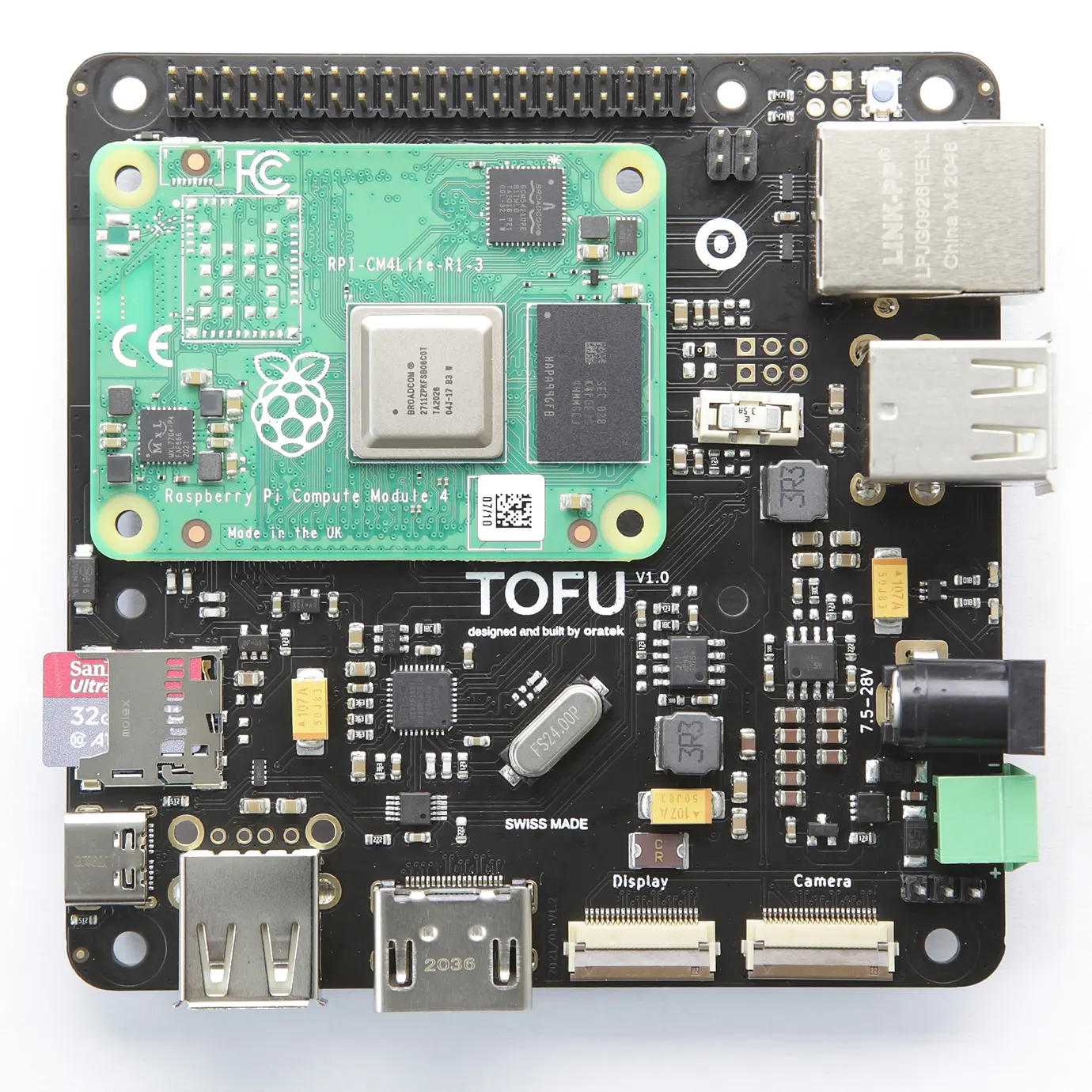
La carte TOFU est une carte d’interface industrielle pour le Raspberry Pi Compute Module 4 (CM4). Inspirée de la carte officielle CM4IO, elle est conçue pour des applications industrielles. Grâce à ses fonctionnalités conviviales, elle peut également être utilisée par les passionnés à la recherche d'une solution compacte et complète pour interfacer les nombreuses entrées et sorties de cet ordinateur monocarte.
Avis technique
La carte a été mise à jour vers la version V1.1 et la version V1.0 n'est plus produite. La version V1.1 n'affecte en rien les fonctionnalités, la conception ou les performances, mais offre une plus grande flexibilité de conception en déplaçant les composants situés sous le Compute Module. Toutes les expéditions actuelles et futures seront en version V1.1. Le numéro de version est indiqué sur l'emballage et sur la carte elle-même.
Journal des modifications V1.1
Ajout
- Logo UKCA
Modification
- Logo UKCA
Suppression
- SIM_SW 0R (R31, sous le CM4)
Caractéristiques
La carte mesure 9x9 cm et ses principales caractéristiques sont :
- Raspberry standard Connecteur GPIO 40 broches Raspberry Pi
- Port Gigabit Ethernet avec PoE via le HAT PoE officiel Raspberry Pi
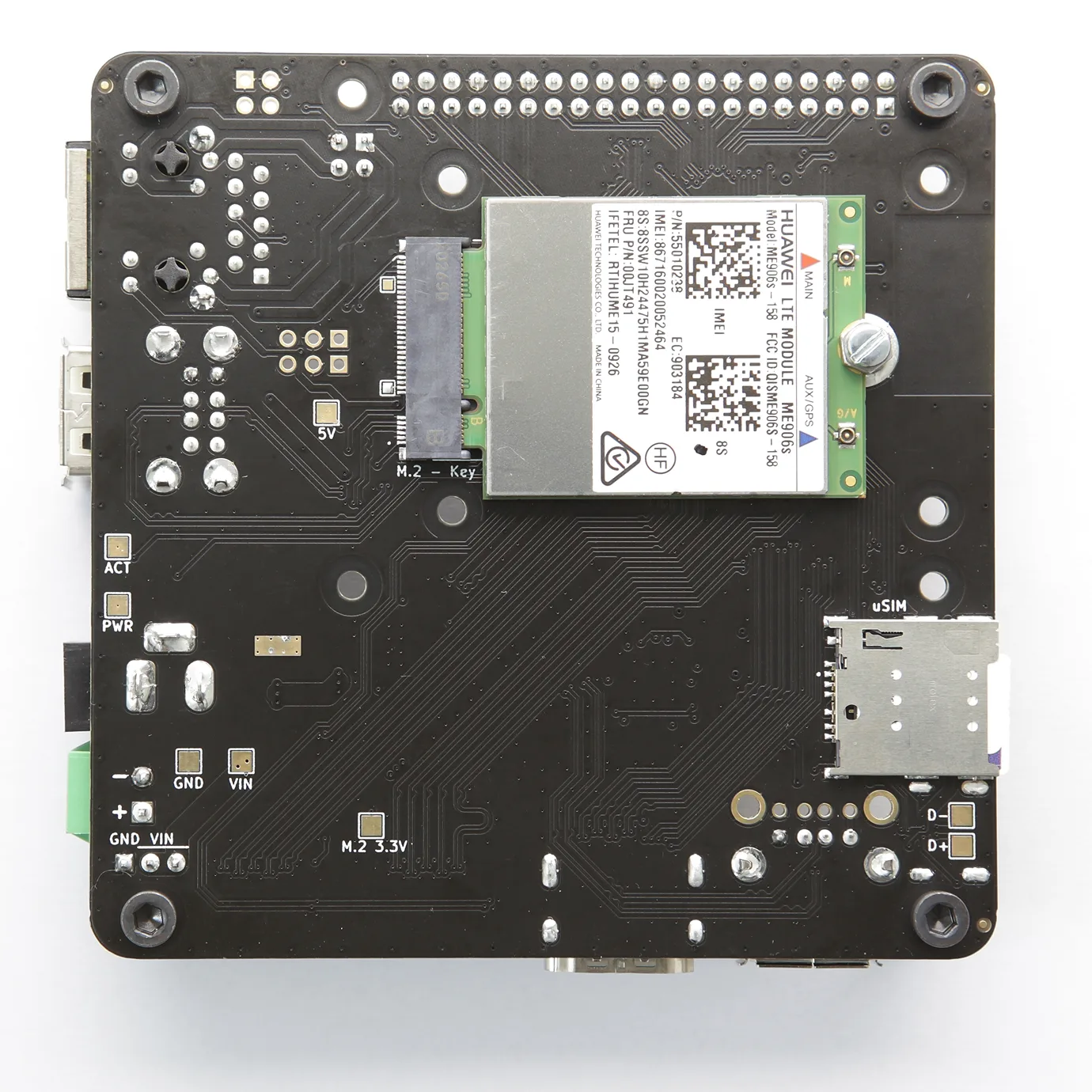
- Emplacement M.2 2242/3042 (clé B) avec lecteur de carte micro SIM. Voir la liste de compatibilité
- 3 ports USB-A
- Port HDMI pleine taille
- Ports caméra et écran (version 22 broches plus récente, câbles adaptateurs flexibles vendus séparément ici)
- Deux entrées d'alimentation pour connecteurs industriels (prise cylindrique 2,1 mm et bornier standard 3,5 mm)
- Large plage de tension d'entrée, de 7,5 à 28 V. Également disponible sur des broches 3x1 pour alimenter les HAT nécessitant des tensions plus élevées (puissance recommandée : >24 W)
- Lecteur de carte micro SD. Utilisé uniquement pour le CM4Lite (sans mémoire eMMC)
- Port USB-C pour une utilisation en tant que périphérique OTG et pour la programmation. Peut également servir à alimenter le CM4, avec des contraintes de puissance en cas d'utilisation de périphériques.
- Protections de circuit ajoutées pour des raisons de sécurité (ESD, protections contre les surintensités et les inversions de polarité)
- Raspberry Pi standard, CM4 et 4 trous de montage M3 supplémentaires pour une plus grande flexibilité de conception
Température de fonctionnement
Le CM4 est conçu pour fonctionner de -20 °C à 85 °C. Tous les composants de la carte TOFU respectent cette plage. Hormis les connecteurs, tous les composants électroniques sont certifiés pour -40 °C ou moins.
Mise en page
.webp)
Informations complémentaires
Remarque : lors de l'alimentation de l'appareil via PoE ou d'autres HAT d'alimentation (ligne 5V de l'en-tête RPi comme entrée d'alimentation), ou via USB-C, un sifflement peut provenir de l'alimentation inutilisée. Le fusible peut être retiré pour un fonctionnement silencieux dans ces cas-là.
Note de mise à jour : suite aux retours de nos clients, il s'avère que le PoE et les HAT d'alimentation alimentent effectivement le connecteur M.2. Cependant, le courant de sortie est souvent limité à 2,5 A sur ces cartes. Nous recommandons une intensité nominale plus élevée pour un fonctionnement optimal de tous les périphériques.
Liste de compatibilité testée
SSD NVMe (M.2 2242)
- KingSpec NE 2242, 128 Go
- Western Digital PC SN520, 128 Go
- Transcend MTE452T, 128 Go
SSD NVMe à clé M (via adaptateur)
- Western Digital Blue SN550, 256 Go, M.2 2280
- Western Digital Black SN750, 1 To, M.2 2280
- Samsung 970 Pro, 512 Go, M.2 2280
Modules sans fil/LTE/GPS (M.2 3042)
- Huawei ME906s-158
- Huawei ME936
- Sierra Wireless AirPrime EM7345
- SIMCom SIM7600G-H
Fichiers techniques
Le dossier de documentation complet contient les plans mécaniques, les schémas et les fichiers STEP, fournis sous la licence incluse dans l'archive.
- Plans mécaniques (PDF)
- Schémas (PDF)
- Fichier STEP
Demander le dossier de documentation TOFU
Configuration
Caractéristiques de la carte
Pour exploiter pleinement les possibilités de la carte, les ports USB et les interfaces NVMe doivent être activés. Comme indiqué sur la fiche technique de la carte CM4IO :
"L'interface USB est désactivée par défaut sur le CM4 pour économiser l'énergie. Pour l'activer, vous devez ajouter ce qui suit au fichier config.txt :"
dtoverlay=dwc2,dr_mode=host
La prise en charge NVMe n'est pas non plus activée par défaut sur Raspberry Pi OS. La commande
sudo modprobe nvme-core
est nécessaire, suivie d'un redémarrage pour activer le module noyau NVMe. Plus d'informations sur le NVMe sont disponibles dans l'analyse du CM4 par Jeff Geerling review.
Démarrage sur eMMC
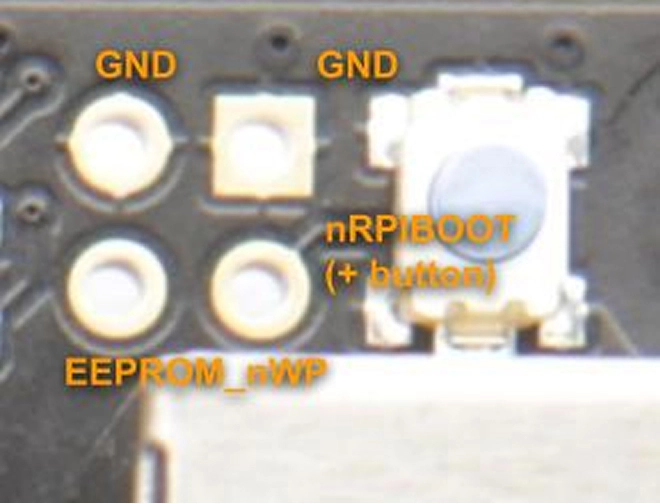
Pour démarrer sur l'eMMC, maintenez le bouton nRPIBOOT enfoncé tout en branchant le câble USB-C pour le flashage (aucune autre alimentation). Le câble USB alimentera le CM4 pendant le démarrage. Vous pouvez relâcher le bouton après avoir branché le câble. Ensuite, vous devez exécuter le script rpiboot. Cela peut être effectué de deux manières :
- Si vous avez BalenaEtcher, ouvrez-le. Il exécutera le script en arrière-plan et, après quelques secondes, votre appareil sera reconnu.
- Installez rpiboot directement. Pour Linux/macOS, suivez les instructions sur leur page GitHub. Pour Windows, vous pouvez télécharger l'installateur.
Vous trouverez plus d'informations sur le flashage de l'eMMC ici.
Fonctions de surveillance (Watchdog)
Le module de calcul se comporte de manière très similaire à un Raspberry Pi 4. Grâce à cela, il est possible d'utiliser les mêmes fonctions de surveillance pour les problèmes de fiabilité. Vous pouvez consulter diode.io pour plus d'informations sur leur utilisation. Des informations complémentaires sont également disponibles sur ce fil de discussionStackExchange.
Montage d'un SSD
Tout d'abord, vous devez partitionner le stockage en suivant ce tutoriel de piramble. Notez que /dev/sda1 sera très probablement remplacé par /dev/nvme0n1.
Une autre possibilité de montage est disponible sur le site Web du Raspberry Pi, ici (avec un appareil formaté).
Un test de référence précis peut être effectué pour déterminer les performances de votre SSD en exécutant la commande de pibenchmarks.com/, où vous verrez d'excellents résultats sur le plateau TOFU dans Meilleurs scores (SBC).
sudo curl https://raw.githubusercontent.com/TheRemote/PiBenchmarks/master/Storage.sh | sudo bash
Cette commande doit être exécutée à l'emplacement du disque.
Démarrage du SSD NVMe
Le Raspberry Pi prend désormais en charge le démarrage par SSD NVMe, et la carte TOFU est le compagnon idéal pour cela ! Vous trouverez peut-être plus d'informations sur le Raspberry Pi documentation.
cartes réseau
Les cartes réseau M.2 utilisent souvent la ligne USB du connecteur comme interface. N'oubliez pas d'activer l'interface USB, comme indiqué ci-dessus.
Les cartes testées fonctionnent de manière native en utilisant Système d'exploitation Balena avec Network Manager et Modem Manager préinstallés. Il vous suffira de créer un fichier de configuration et il fonctionnera dès la sortie de la boîte (plus de détails).
Une autre méthode consiste à installer et configurer manuellement Network Manager et Modem Manager. Cette procédure n'est pas spécifique à la carte TOFU, mais s'applique de manière générale à Linux. Un guide de démarrage est disponible ici.
Ports pour caméra et écran
Sur la carte TOFU, les ports pour caméra et écran sont nommés cam1 et disp1. Vous trouverez des instructions pour les activer dans la documentation du Raspberry Pi (caméra et écran). Vous pouvez par exemple télécharger le fichierdt-blob-disp1-cam1.dtsen bas de page.
Vous devez ensuite compiler le fichier (cela générera de nombreux avertissements qui peuvent être ignorés) :
sudo dtc -I dts -O dtb -o dt-blob-disp1-cam1.dtb dt-blob-disp1-cam1.dts
Installez ensuite le fichier dt-blob.bin :
sudo cp dt-blob-disp1-cam1.dtb /boot/dt-blob.bin
redémarrez, et tout devrait être prêt. Vous trouverez davantage d'informations ici. Pour utiliser la caméra, vous pouvez consulter ces guides sur le logiciel libcamera.
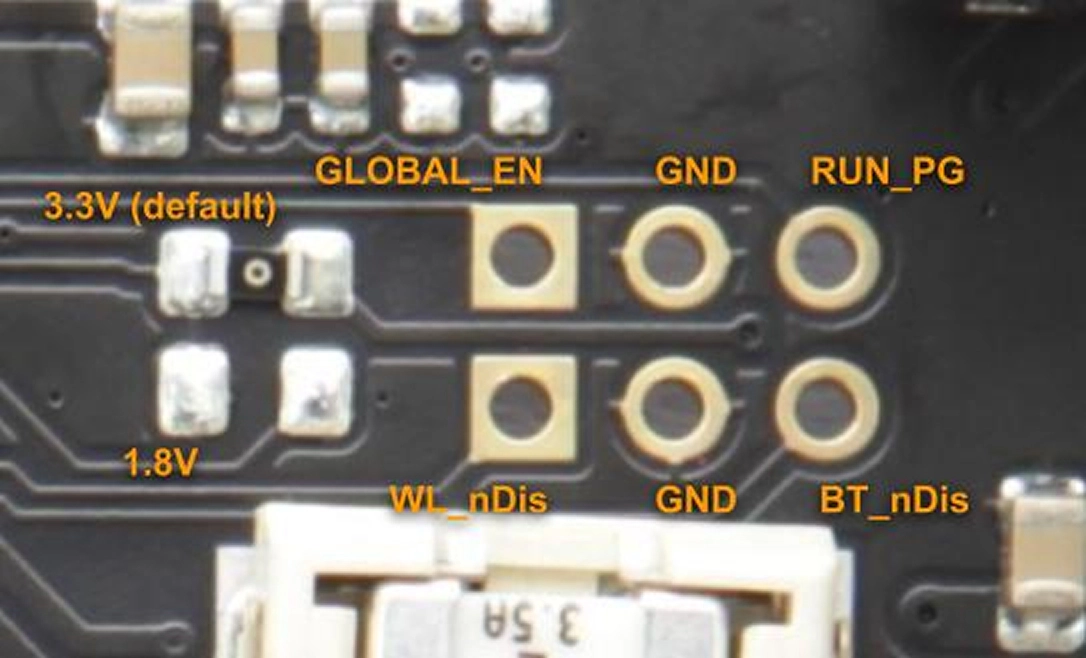
Configurations des broches
cartes réseau
Les cartes réseau M.2 utilisent souvent la ligne USB du connecteur comme interface. N'oubliez pas d'activer l'interface USB, comme indiqué ci-dessus.
Les cartes testées fonctionnent de manière native en utilisant le système d'exploitation Balena avec Network Manager et Modem Manager préinstallés. Il vous suffira de créer un fichier de configuration pour qu'elle soit opérationnelle immédiatement (plus de détails).
Une autre méthode consiste à installer manuellement Network Manager et Modem Manager puis à les configurer. Cette procédure n'est pas spécifique à la carte TOFU mais s'applique de manière générale à Linux. Un guide de démarrage est disponible ici.
Ressources
- Fiche technique du Raspberry Pi Compute Module 4
- Fiche technique de la carte d'E/S du Raspberry Pi Compute Module 4
- Documentation générale sur le Raspberry Pi
Personnalisation
Oratek est une société d'ingénierie, par conséquent toute personnalisation ou tout développement basé sur le TOFU n'est pas seulement une possibilité, mais une réalité. Au cours des dernières années, nous avons réalisé de nombreux développements sur mesure et nous sommes heureux de répondre à toutes vos demandes.
Pour toute demande, veuillez nous contacter
Déclarations de conformité
Raspberry Pi est une marque déposée de la Raspberry Pi Foundation