Designed by Oratek in Switzerland
Overview
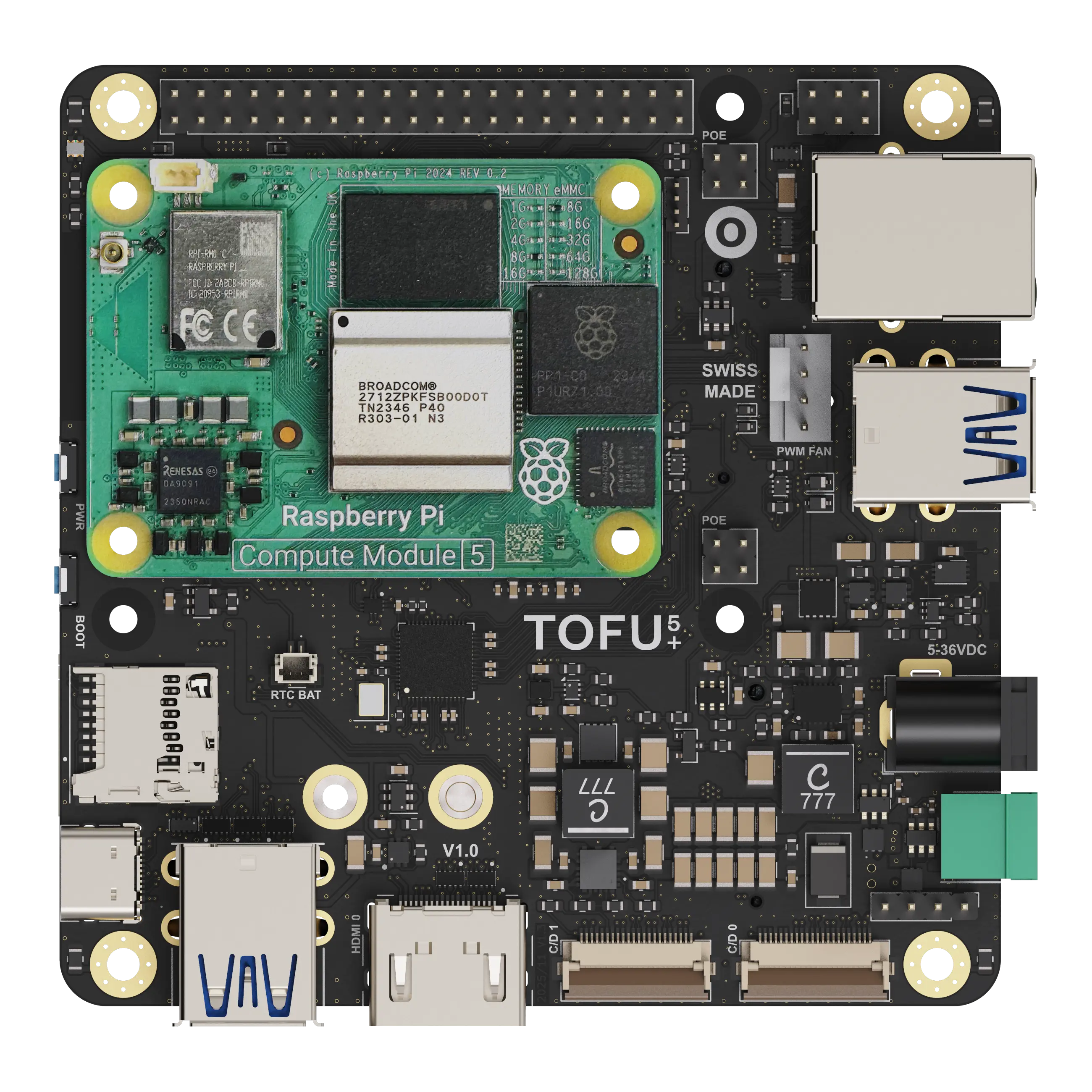
The TOFU5+ is the next-generation carrier board for the Raspberry Pi Compute Module 5 (CM5), designed to meet the evolving demands of industrial applications.
Built on the proven TOFU platform, the TOFU5+ enhances existing features, adds new functionalities, and maximizes the capabilities of the latest Compute Module. Maintaining the same compact footprint as the previous generation, this board introduces an updated and intelligent integration of displays, cameras, faster USB 3.0 ports, and two M.2 ports. These additions allow seamless use of SSDs and cellular modules, enabling a wide range of applications.
The TOFU5+ is engineered to operate over an extensive power range and offers numerous customization possibilities. With improved protection features, it delivers reliable performance across diverse and demanding scenarios.
Features
The size of the board is 9x9cm and its main features are :
- CM5 Assembly Slot
- Standard Raspberry Pi 40-Pin Heade
- 5-36V Input, 20W Shared 3.3V/10A and 5V/5A Power Supplies
- Gigabit Ethernet Port, PoE/PoE+ Capability
- Compatible with both POE and POE+ Raspberry Pi HATs (spacer required)
- M.2 Key M 2230/2242 Socket
- PCIe (Gen2 x1) Connectivity
- M.2 Key B 2230/2242/3042/3052 Socket
- USB3.0 or PCIe (Gen2 x1) Connectivity
- microSIM Card Holder
- eSIM Footprint
- 4x USB3.0 Type-A Ports
- Simple A Port Option [Molex 48405-0004 in place of 48406-0001]
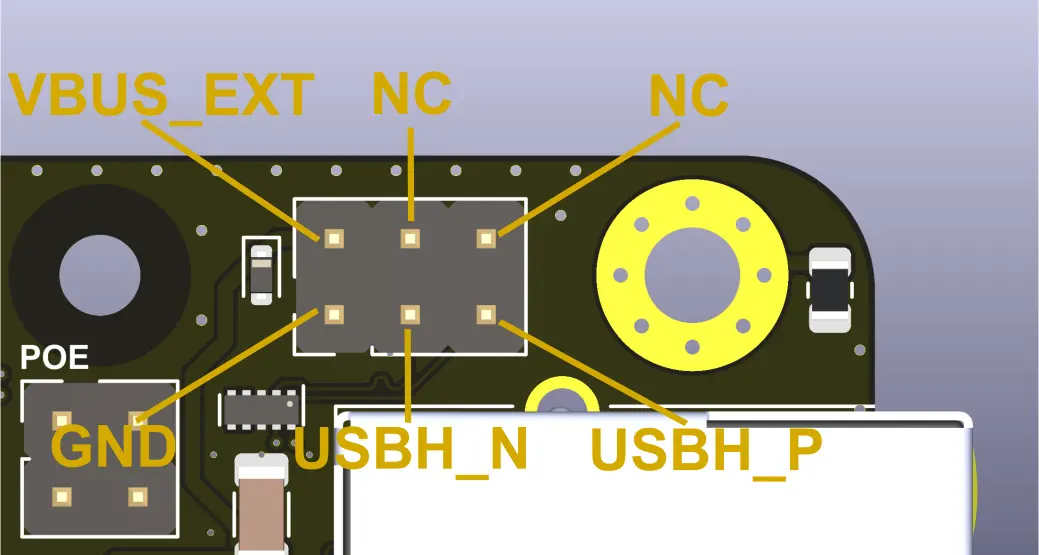
- 1x USB2.0 Breakout Header
- 1x Full-Size HDMI Port
- 2x 4-Lane Camera (CSI)/Display (DSI) Hybrid Ports
- Barrel Jack and Terminal Block Power Inputs
- USB-C Power/Data Input with CM5-Enabled Power Delivery (PD)
- Up to 5V/5A Input
- USB 2.0 Connectivity
- Micro SD Card Slot for Lite Modules
- PWM Fan Port with Voltage Selection
- I2C Temperature Sensor
- Real-Time Clock with external JST battery connector (same as Raspberry Pi 5)
- Cryptographic IC
- Red, Green, Blue I2C LED
- Activity, Power LEDs
- Boot Mode and Power Button
- 4x Switch Inputs
- PCIe Port Selection (Key B or M)
- I2C1 Enable for Second CSI/DSI Interface
- Fan Voltage Selection (5V or VIN)
- 5V Input/Output Configuration on 40-Pin Header
- Power Handling Capabilities
- Optional Main Power Watchdog
- 3.3V Power Shutdown for all Interfaces
- USB Power Shutdown
- Key B Network Card Wireless Disable and Shutdown
- ESD Protection on All Inputs/Outputs
- Standard Raspberry Pi and 4 Additional M3 Mounting Holes

Operating temperature
The CM5 is rated from -20°C to 85°C. All components on the TOFU board comply with this range.
Apart from connectors, all electronic components are rated for -40°C or below.
Layout
.webp)
Additional information
Tested compatibility list
NVMe SSDs (M.2 2242)
- KingSpec NE 2242, 128GB
- Western Digital PC SN520, 128GB
- Transcend MTE452T, 128GB
M key NVMe SSD (through adapter)
- Western Digital Blue SN550, 256GB, M.2 2280
- Western Digital Black SN750, 1TB, M.2 2280
- Samsung 970 Pro, 512GB, M.2 2280
Wireless/LTE/GPS modules (M.2 3042)
- Huawei ME906s-158
- Huawei ME936
- Sierra Wireless AirPrime EM7345
- SIMCom SIM7600G-H
Technical files
The complete documentation bundle contains the mechanical drawings, the schematics and the STEP files, provided under the licence included in the archive.
- Schematics (PDF)
- Mechanical drawings (PDF)
- STEP file
Request the TOFU5+ documentation bundle
Setup
Board features
The USB2.0 interface of the CM5 is disabled by default. to enable it, add the following overlay setting to your config.txt file:
dtoverlay=dwc2,dr_mode=hostRTC Trickle Charging
To enable the trickle charging of the RTC when the CM5 is powered you'll need to add the following parameter in the '/boot/firmware/config.txt' file
dtparam=rtc_bbat_vchg=3000000
eMMC boot
To boot on eMMC, hold down the nRPIBOOT button while plugging the USB-C cable for flashing (no other power input). The USB cable will power the CM5 while it boots. You may release the button after having plugged the cable. Then, you need to run the rpiboot script. This can be done in two ways:
- If you have BalenaEtcher, open it. It will run the script in the background, and after a few seconds, your device will be recognized.
- Install rpiboot directly. For Linux/macOS, follow the instructions on their github page. For Windows, you can download the installer.
More information for flashing the eMMC can be found here.
Watchdog functions
The compute module behaves much like a Raspberry Pi 5. Thanks to this, one can use the same watchdog functions for reliability issues. You can have a look at diode.io for more information on how to use those. More information may also be found on this StackExchange thread.
SSD mounting
First, you need to partition the storage, following this tutorial from pidramble. Note that /dev/sda1 will most likely be replaced by /dev/nvme0n1.
An alternate possibility for mounting can be found on Raspberry Pi's website, here (with a formatted device).
A neat benchmark test can be run to find your SSD performance by running the command from pibenchmarks.com.
sudo curl https://raw.githubusercontent.com/TheRemote/PiBenchmarks/master/Storage.sh | sudo bash
This command has to be run in the disk location.
NVMe SSD boot
Raspberry Pi supports NVMe SSD booting, and the TOFU5+ board is the perfect companion for that! You may find more information on Raspberry Pi's documentation.
USB-C power / Data Config Switch
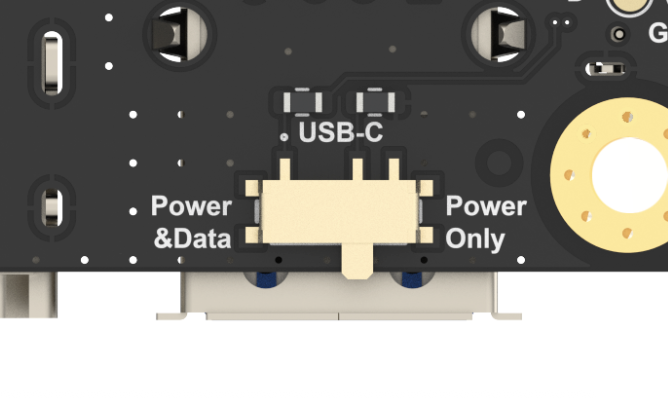
If a cable in plugged into the USB-C socket and sliding switch is on power+data position, the CM5 becomes a usb device (default) and its USB 2.0 bus is routed to the USB-C port.
If the sliding switch is in the power position, the USB-C port is used for power only and the CM5 USB 2.0 bus is routed to the USB 2.0 breakout header.
Network cards
M.2 network cards often use the USB line of the connector as interface. Remember to enable the USB interface, as mentioned above.
The tested cards work natively using Balena OS with Network Manager and Modem Manager being pre-installed. You will just have to set up a configuration file and it works straight out of the box (more details).
Another way is to manually install Network Manager and Modem Manager and configure it. This is not specific to the TOFU board but more general to Linux. A guide to get started can be found here.
On-board I2C devices
The TOFU5+ carries three I2C devices on its on-board bus:
Enabling the bus
Enable the on-board I2C bus by adding the following parameters to `/boot/firmware/config.txt`:
dtparam=i2c_arm=on
dtparam=i2c_csi_dsi0=on
Reboot, then confirm the devices are detected:
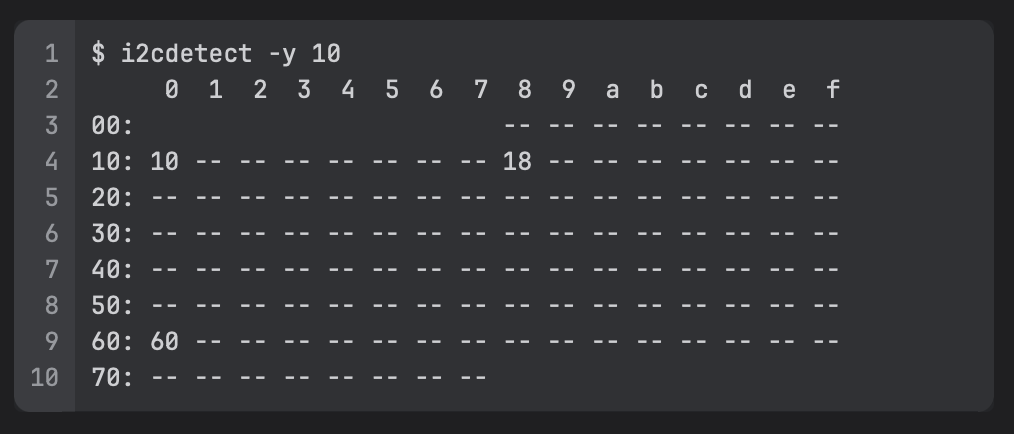
The MCP9808 temperature sensor appears at address 0x18, the PCA9670 GPIO expander at 0x10, and the ATECC608B cryptographic IC at 0x60.
Demo scripts
A set of demo scripts showing how to communicate with all three devices is available here.
Camera and Display ports
On the TOFU board, the camera and display ports can be either C/D0 (CAM0/DISP0) or C/D1 (CAM1/DISP1) and used independently for 2 cameras, 2 displays or camera + display.
To use the I2C on the C/D1 port, the I2C1 need to be activated thanks to the DIP switch (see pin configurations)
Here are example of dtoverlay commands (add it to the /boot/firmware/config.txt) for using the Raspberry Pi Camera Module 3 on the board:
On port C/D0
dtoverlay=imx708,cam
On port C/D1
dtoverlay=imx708,cam1
Here are example of dtoverlay commands (add it to the /boot/firmware/config.txt) for using the Raspberry Pi Touch Display 2 on the board. Be sure the screen is powered, by using the 5 V rail accessible on the 40pin connector:
On port C/D0
dtoverlay=vc4-kms-dsi-ili9881-7inch,dsi0
On port C/D1
dtoverlay=vc4-kms-dsi-ili9881-7inch,dsi1
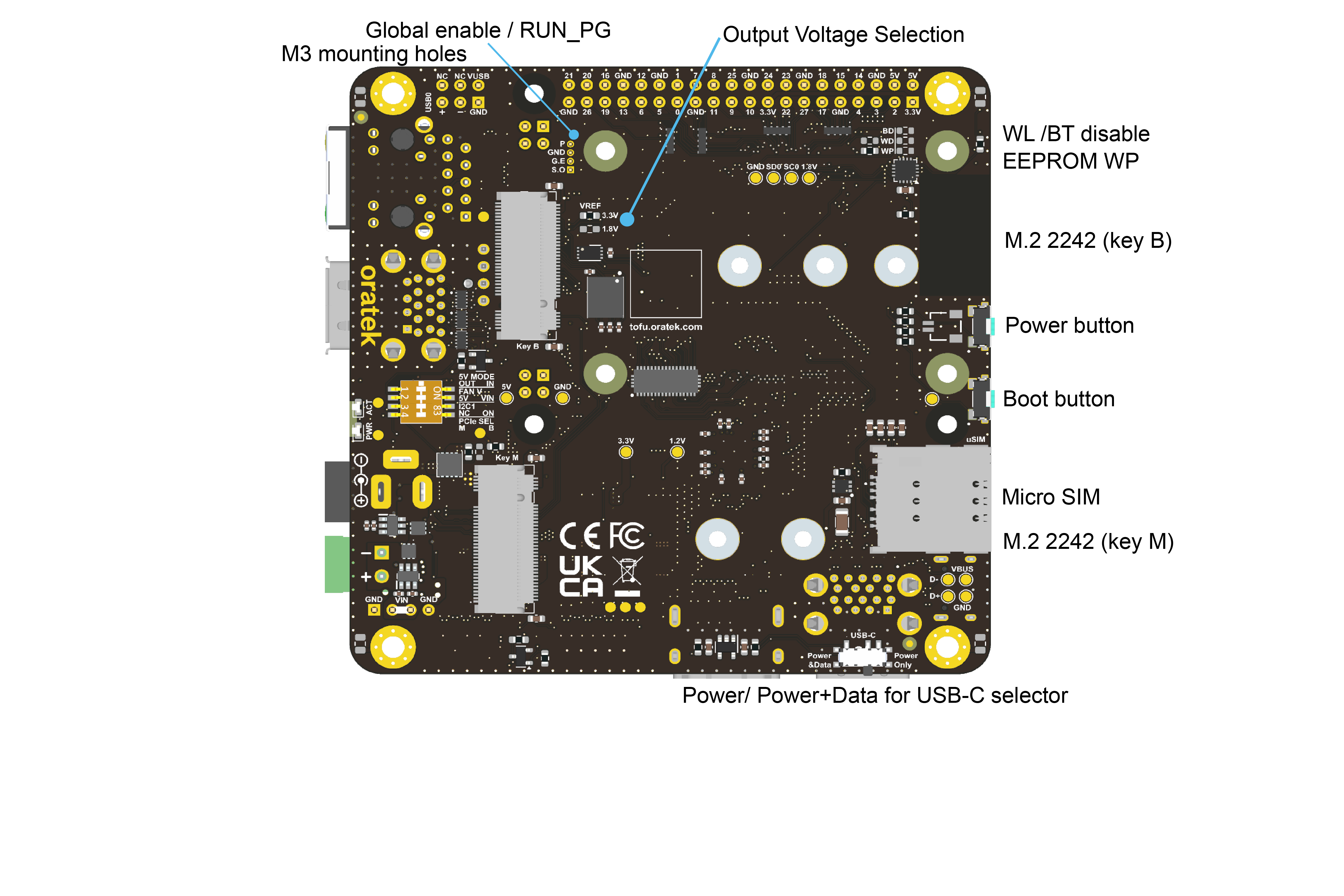
Pin configurations
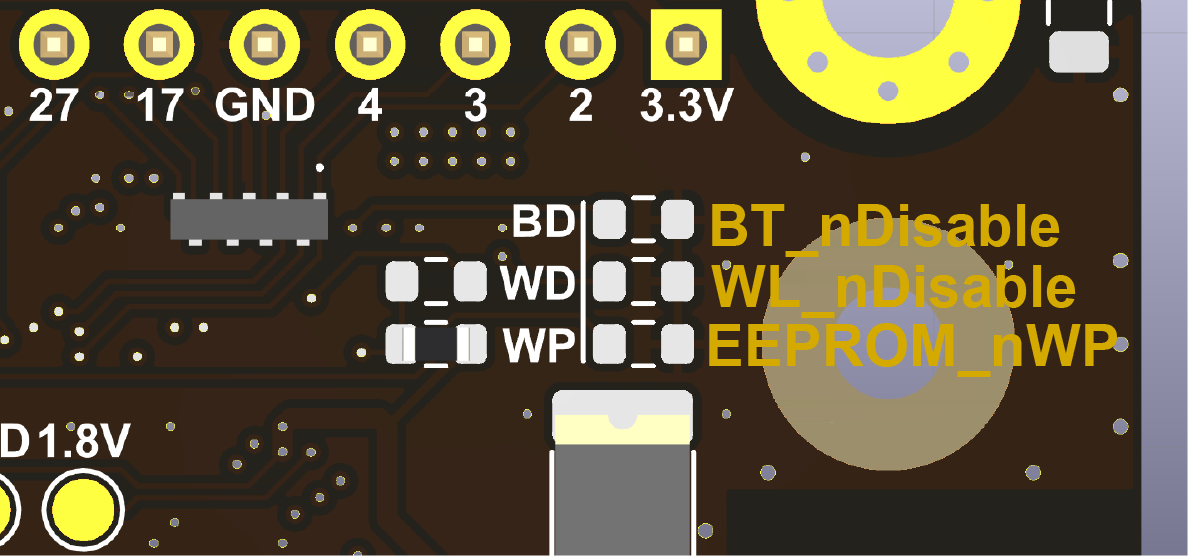
- WiFi Disable
- Bluetooth Disable
- EEPROM write protection
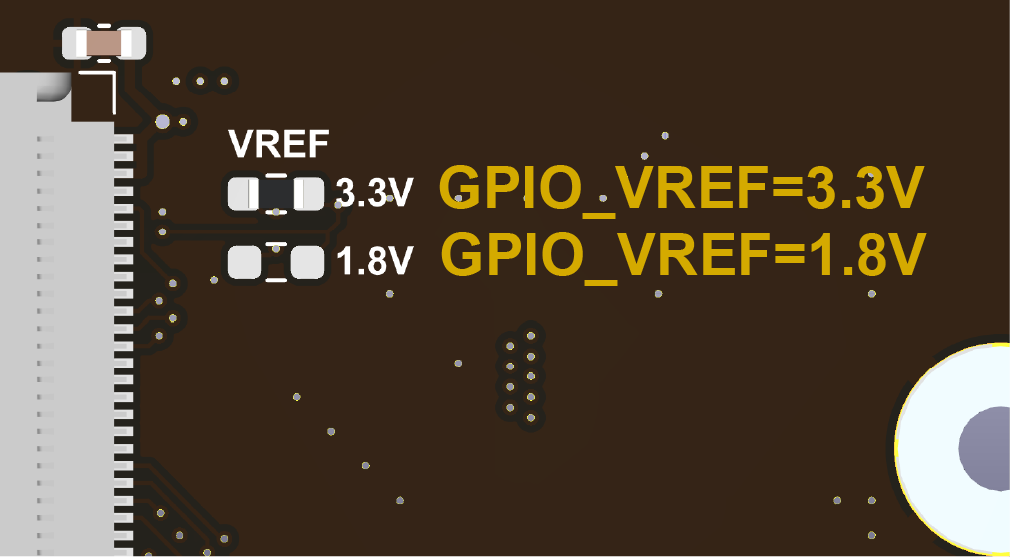
- GPIO output voltage selection, 3.3 V or 1.8 V. (populate only one resistor)
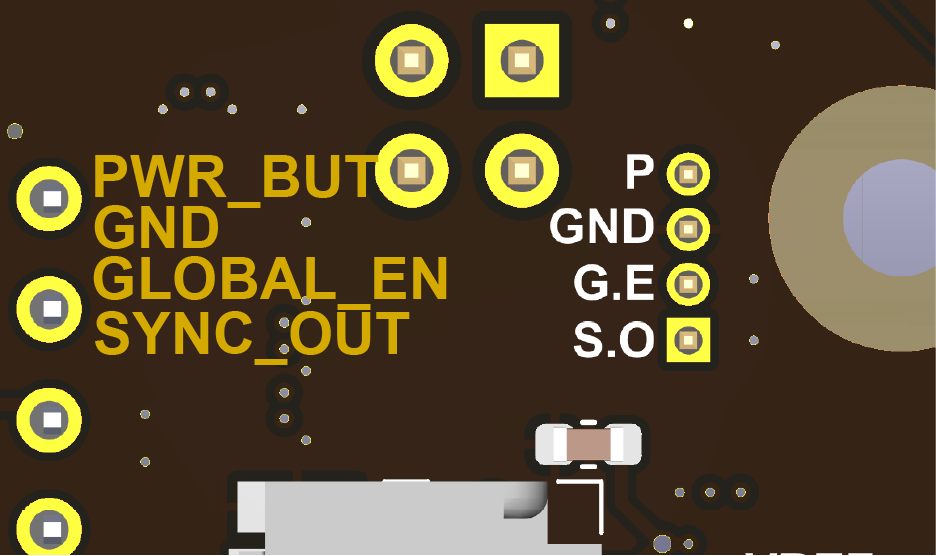
- Power button
- GND
- Global Enable
- Sync Out.
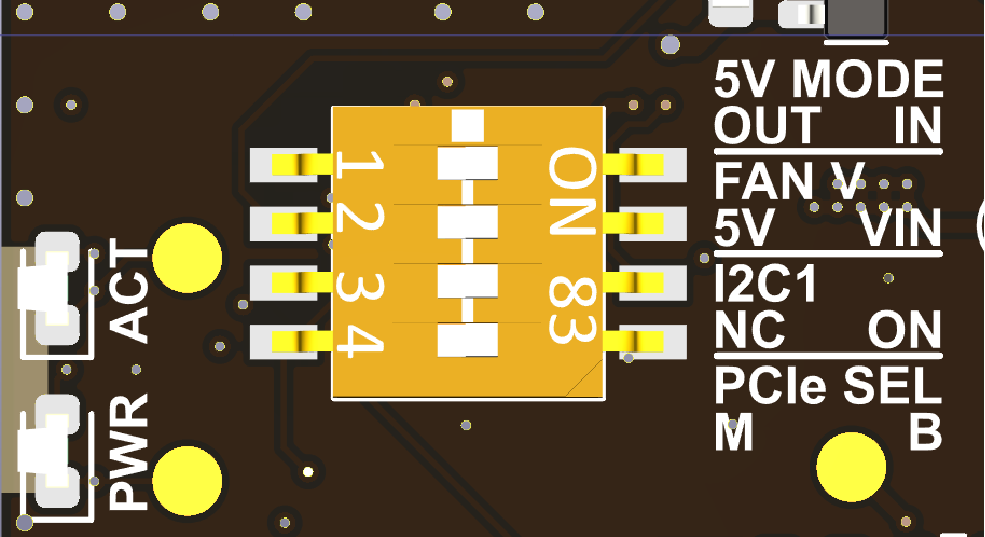
- PCIe Port Selection (Key B or M)
- (I2C1 Enable for Second CSI/DSI Interface)
- Fan Voltage Selection (5V or VIN)
- 5V Input/Output Configuration on 40-Pin Header
Warning
- Any external power supply used with the TOFU5+ Board shall comply with relevant regulations and standards applicable in the country of intended use.
- This product should be operated in a well-ventilated environment. If used inside a case, the case should not be covered and should allow for heat dissipation.
- Whilst in use, this product should be placed on a stable, flat, non-conductive surface, and should not be contacted by conductive items.
- The connection of incompatible devices to the TOFU5+ Board may affect compliance, result in damage to the unit, and invalidate the warranty.
- All peripherals used with this product should comply with relevant standards for the country of use and be marked accordingly to ensure that safety and performance requirements are met. These articles include but are not limited to keyboards, monitors, and mice when used in conjunction with the TOFU5+ Board.
- The cables and connectors of all peripherals used with this product must have adequate insulation so that relevant safety requirements are met.
Safety Instructions
To avoid malfunction or damage to this product, please observe the following:
- Do not expose to water or moisture, or place on a conductive surface whilst in operation.
- Do not expose yourself to excessive heat from any source.
- Take care whilst handling to avoid mechanical or electrical damage to the printed circuit board and connectors.
- Whilst it is powered, avoid handling the printed circuit board, or only handle it by the edges to minimise the risk of electrostatic discharge damage.
Resources
- Raspberry Pi Compute Module 5 datasheet
- Raspberry Pi Compute Module 5 IO Board datasheet
- General Raspberry Pi documentation
Customisation
Oratek is an engineering firm at earth therefore any customization or development based on the TOFU is not only a possibility but also a reality. In the past years, we have developed numerous custom development and we are happy to hear any request.
For any enquiry, please contact us
Declarations of Conformity
- RoHS Declaration of Conformity
- CE Declaration of Conformity
- FCC Declaration of Conformity
- UKCA Declaration of Conformity
Raspberry Pi is a trademark of the Raspberry Pi Foundation