Développée par Oratek en Suisse
Présentation
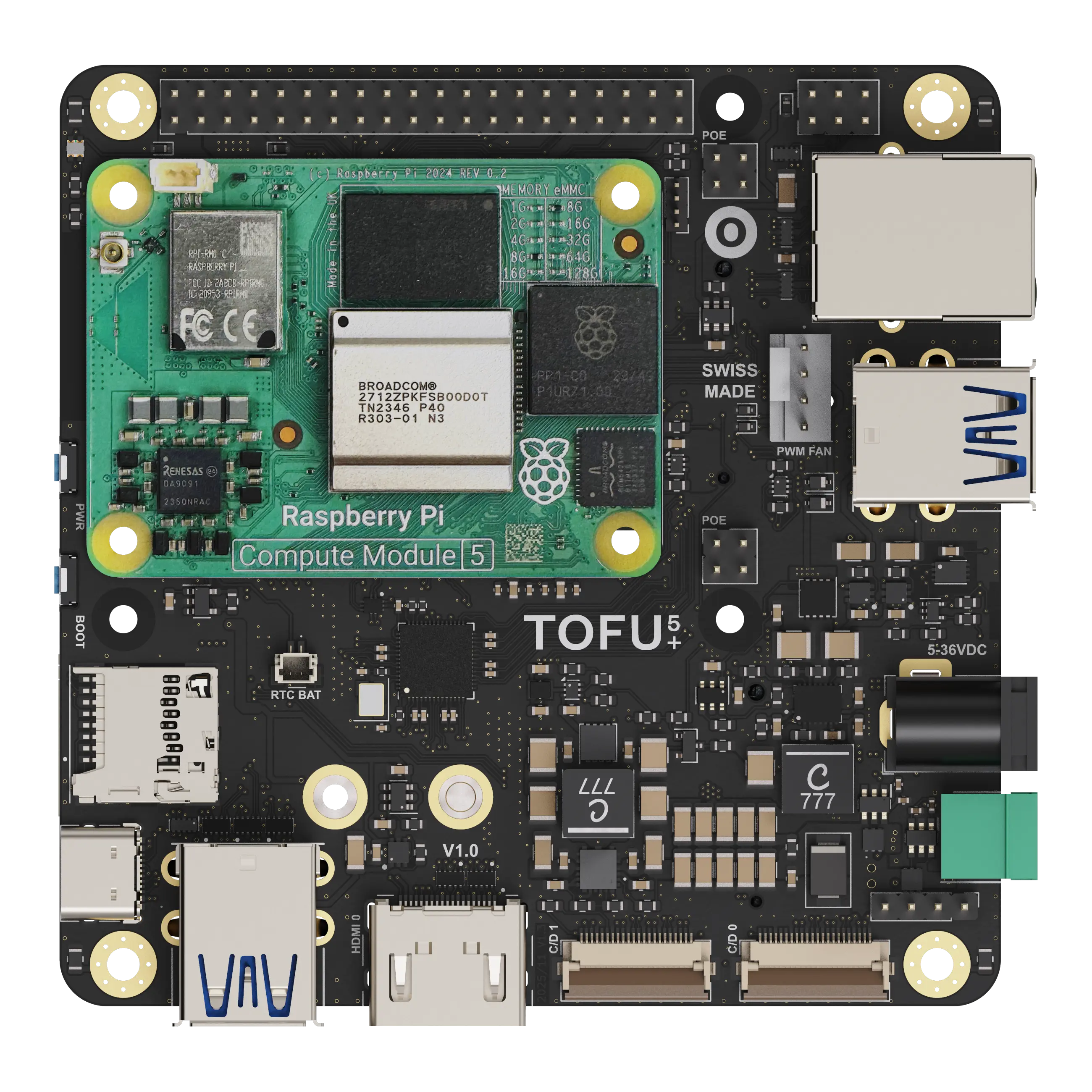
La TOFU5+ est une carte d’interface industrielle pour la nouvelle génération de Raspberry Pi Compute Module 5 (CM5), conçue pour répondre aux exigences croissantes des applications industrielles.
Basée sur la plateforme éprouvée TOFU, la TOFU5+ améliore les fonctionnalités existantes, en ajoute de nouvelles et maximise les capacités du tout dernier Compute Module. Conservant le même format compact que la génération précédente, cette carte introduit une intégration intelligente et mise à jour des écrans, des caméras, de ports USB 3.0 plus rapides et de deux ports M.2. Ces ajouts permettent une utilisation fluide de disques SSD et de modules cellulaires, ouvrant la voie à un large éventail d'applications.
La TOFU5+ est conçue pour fonctionner sur une large plage de tension et offre de nombreuses possibilités de personnalisation. Grâce à des fonctions de protection améliorées, elle garantit des performances fiables dans des scénarios variés et exigeants.
Caractéristiques
La carte mesure 9x9 cm et ses principales caractéristiques sont :
- Emplacement pour CM5
- Connecteur standard Raspberry Pi 40 broches
- Entrée 5-36V, alimentations partagées 3,3V/10A et 5V/5A de 20W
- Port Gigabit Ethernet, compatible PoE/PoE+
- Compatible avec les HAT Raspberry Pi POE et POE+ (entretoise requise)
- Connecteur M.2 Key M 2230/2242
- Connectivité PCIe (Gen2 x1)
- Connecteur M.2 Key B 2230/2242/3042/3052
- Connectivité USB 3.0 ou PCIe (Gen2 x1)
- Lecteur de carte microSIM
- Emplacement eSIM
- 4 ports USB 3.0 Type-A
- Option de port A simple [Molex 48405-0004 à la place du 48406-0001]
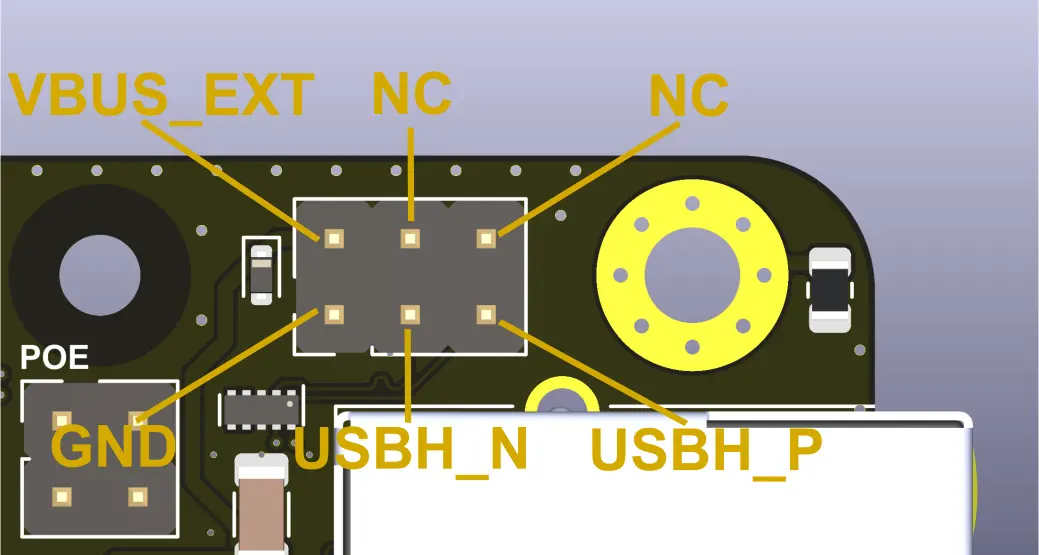
- 1 connecteur interne USB 2.0
- 1 port HDMI pleine taille
- 2 ports hybrides caméra (CSI)/écran (DSI) à 4 voies
- Entrées d'alimentation par connecteur cylindrique et bornier
- Entrée alimentation/données USB-C avec Power Delivery (PD) compatible CM5
- Entrée jusqu'à 5V/5A
- Connectivité USB 2.0
- Lecteur de carte Micro SD pour modules Lite
- Port ventilateur PWM avec sélection de tension
- Capteur de température I2C
- Horloge temps réel avec connecteur de batterie JST externe (identique au Raspberry Pi 5)
- Puce cryptographique
- LED RGB I2C
- LED d'activité et d'alimentation
- Bouton de mode de démarrage et d'alimentation
- 4 entrées commutateurs
- Sélection de port PCIe (Key B ou M)
- Activation de l'I2C1 pour la seconde interface CSI/DSI
- Sélection de la tension du ventilateur (5V ou VIN)
- Configuration des entrées/sorties 5V sur le connecteur 40 broches
- Capacités de gestion de l'alimentation
- Chien de garde d'alimentation principale en option
- Coupure de l'alimentation 3,3V pour toutes les interfaces
- Coupure de l'alimentation USB
- Désactivation et coupure de la carte réseau sans fil Key B
- Protection ESD sur toutes les entrées/sorties
- Format standard Raspberry Pi avec 4 trous de montage M3 supplémentaires

Température de fonctionnement
Le CM5 est conçu pour fonctionner de -20°C à 85°C. Tous les composants de la carte TOFU respectent cette plage.
À l'exception des connecteurs, tous les composants électroniques sont certifiés pour -40°C ou moins.
Disposition
.webp)
Informations complémentaires
Liste de compatibilité testée
SSD NVMe (M.2 2242)
- KingSpec NE 2242, 128 Go
- Western Digital PC SN520, 128 Go
- Transcend MTE452T, 128 Go
SSD NVMe avec détrompeur M (via adaptateur)
- Western Digital Blue SN550, 256 Go, M.2 2280
- Western Digital Black SN750, 1 To, M.2 2280
- Samsung 970 Pro, 512 Go, M.2 2280
Modules sans fil/LTE/GPS (M.2 3042)
- Huawei ME906s-158
- Huawei ME936
- Sierra Wireless AirPrime EM7345
- SIMCom SIM7600G-H
Fichiers techniques
Le dossier de documentation complet contient les plans mécaniques, les schémas et les fichiers STEP, fournis sous la licence incluse dans l'archive.
- Schémas (PDF)
- Dessins techniques (PDF)
- Fichier STEP
Demander le dossier de documentation du TOFU5+
Configuration
Caractéristiques de la carte
Pour exploiter pleinement les possibilités de la carte, les ports USB et les interfaces NVMe doivent être activés.
Comme indiqué sur la fiche technique du CM5 :
"L'interface USB est désactivée par défaut sur le CM4 pour économiser l'énergie. Pour l'activer, vous devez ajouter la ligne suivante au fichier config.txt :"
dtoverlay=dwc2,dr_mode=host
La prise en charge du NVMe n'est pas non plus activée par défaut sur Raspberry Pi OS. La commande
sudo modprobe nvme-core
est nécessaire, suivie d'un redémarrage pour activer le module noyau NVMe.
Plus d'informations sur le NVMe sont disponibles dans l'article de Jeff Geerling sur le CM4 review.
Charge d'entretien de l'horloge temps réel (RTC)
Pour activer la charge d'entretien de la RTC lorsque le CM5 est sous tension, vous devez ajouter le paramètre suivant dans le fichier '/boot/firmware/config.txt'
dtparam=rtc_bbat_vchg=3000000
Démarrage sur eMMC
Pour démarrer sur l'eMMC, maintenez le bouton nRPIBOOT enfoncé tout en branchant le câble USB-C pour le flashage (aucune autre alimentation). Le câble USB alimentera le CM5 pendant son démarrage. Vous pouvez relâcher le bouton après avoir branché le câble. Ensuite, vous devez exécuter le script rpiboot. Cela peut être effectué de deux manières :
- Si vous disposez de BalenaEtcher, ouvrez-le. Le script s'exécutera en arrière-plan et, après quelques secondes, votre appareil sera reconnu.
- Installez rpiboot directement. Pour Linux/macOS, suivez les instructions sur leur page GitHub. Pour Windows, vous pouvez télécharger l'installateur.
Vous trouverez plus d'informations sur le flashage de l'eMMC ici.
Fonctions de surveillance (Watchdog)
Le module de calcul se comporte de manière très similaire à un Raspberry Pi 5. Grâce à cela, il est possible d'utiliser les mêmes fonctions de surveillance pour les problèmes de fiabilité. Vous pouvez consulter diode.io pour plus d'informations sur leur utilisation. Des informations complémentaires sont également disponibles sur ce fil de discussionStackExchange.
Montage d'un SSD
Tout d'abord, vous devez partitionner le stockage en suivant ce tutoriel de pidramble. Notez que /dev/sda1 sera très probablement remplacé par /dev/nvme0n1.
Une autre possibilité de montage est disponible sur le site web de Raspberry Pi, ici (avec un périphérique formaté).
Un test de performance pratique peut être effectué pour évaluer les performances de votre SSD en exécutant la commande provenant de pibenchmarks.com.
sudo curl https://raw.githubusercontent.com/TheRemote/PiBenchmarks/master/Storage.sh | sudo bash
Cette commande doit être exécutée à l'emplacement du disque.
Démarrage sur SSD NVMe
Raspberry Pi prend en charge le démarrage sur SSD NVMe, et la carte TOFU5+ est le compagnon idéal pour cela ! Vous trouverez plus d'informations dans la documentationde Raspberry Pi.
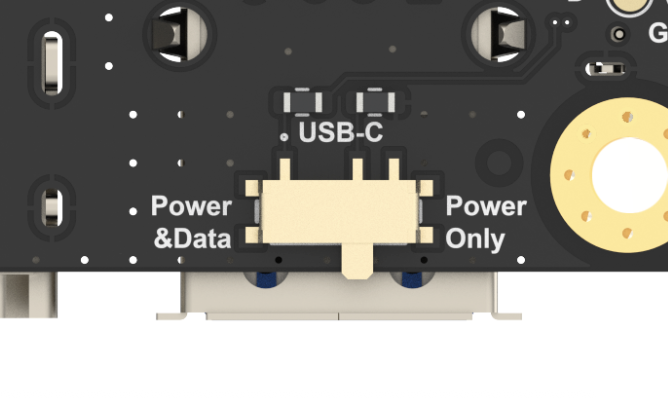
Commutateur coulissant de configuration alimentation/alimentation+données USB-C / connecteur USB 2.0
Si un câble est branché sur le port USB-C et que le commutateur coulissant est en position Power&Data, le CM5 devient un périphérique USB (par défaut) et son bus USB 2.0 est acheminé vers le port USB-C.
Si le commutateur coulissant est en position "Power Only", le port USB-C est utilisé uniquement pour l'alimentation et le bus USB 2.0 du CM5 est acheminé vers le connecteur USB 2.0.
Cartes réseau
Les cartes réseau M.2 utilisent souvent la ligne USB du connecteur comme interface. N'oubliez pas d'activer l'interface USB, comme mentionné ci-dessus.
Les cartes testées fonctionnent nativement avec Balena OS avec Network Manager et Modem Manager préinstallés. Il vous suffit de configurer un fichier de configuration pour que cela fonctionne immédiatement (plus de détails).
Une autre méthode consiste à installer manuellement Network Manager et Modem Manager, puis à les configurer. Cette procédure n'est pas spécifique à la carte TOFU, mais s'applique de manière générale à Linux. Un guide pour bien démarrer est disponible ici.
Périphériques I2C embarqués
La TOFU5+ intègre trois périphériques I2C connectés à son bus I2C embarqué :
Activation du bus
Activez le bus I2C embarqué en ajoutant les paramètres suivants au fichier : /boot/firmware/config.txt
dtparam=i2c_arm=on
dtparam=i2c_csi_dsi0=on
Redémarrez ensuite votre système, puis vérifiez que les périphériques sont correctement détectés :
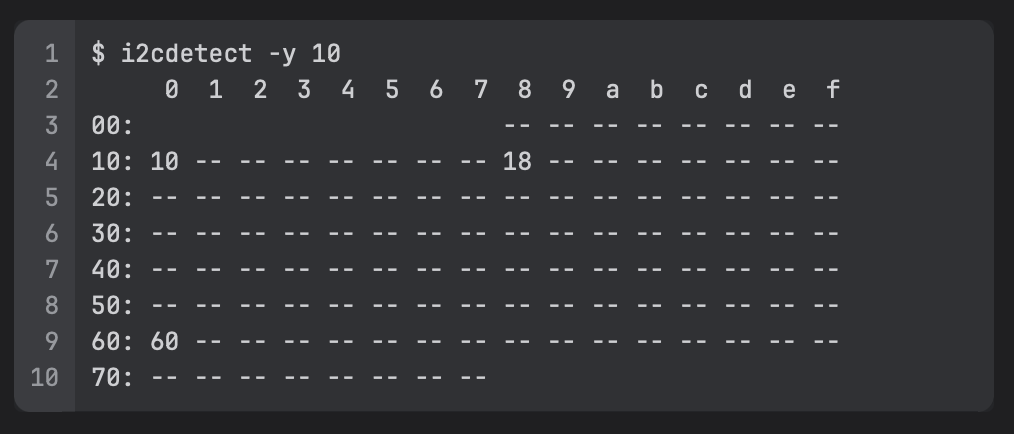
Le capteur de température MCP9808 apparaît à l’adresse 0x18, l’expanseur de GPIO PCA9670 à l’adresse 0x10, et le circuit cryptographique ATECC608B à l’adresse 0x60.
Scripts de démonstration
Un ensemble de scripts de démonstration montrant comment communiquer avec ces trois périphériques est disponible ici.
Configurations des broches
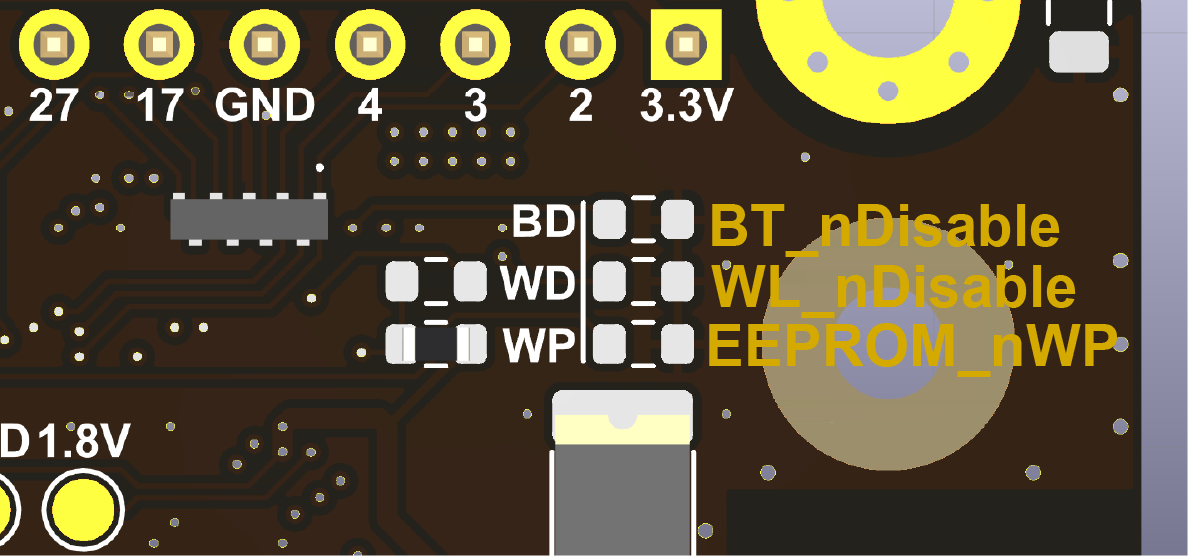
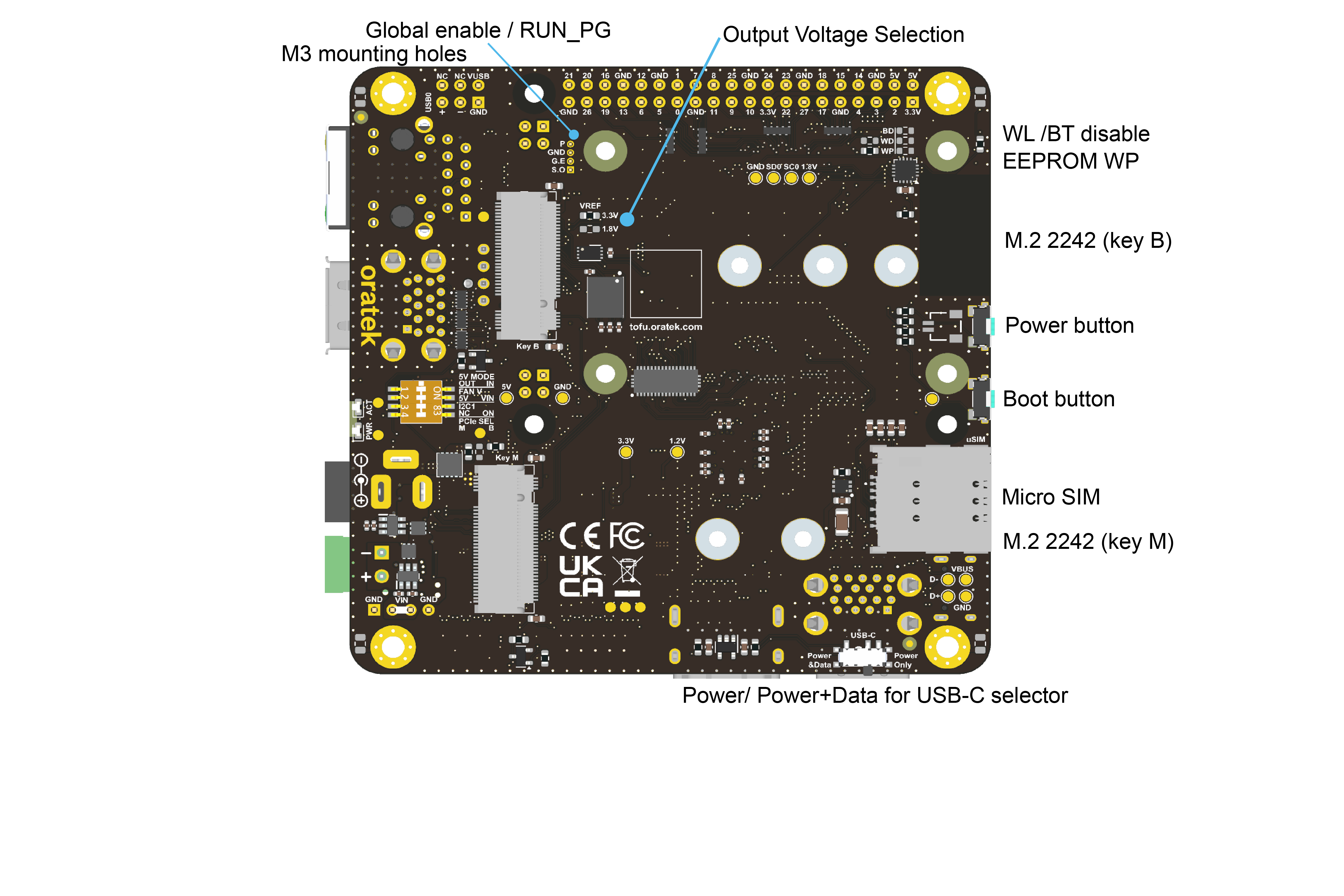
- Désactivation du WiFi
- Désactivation du Bluetooth
- Protection en écriture de l'EEPROM
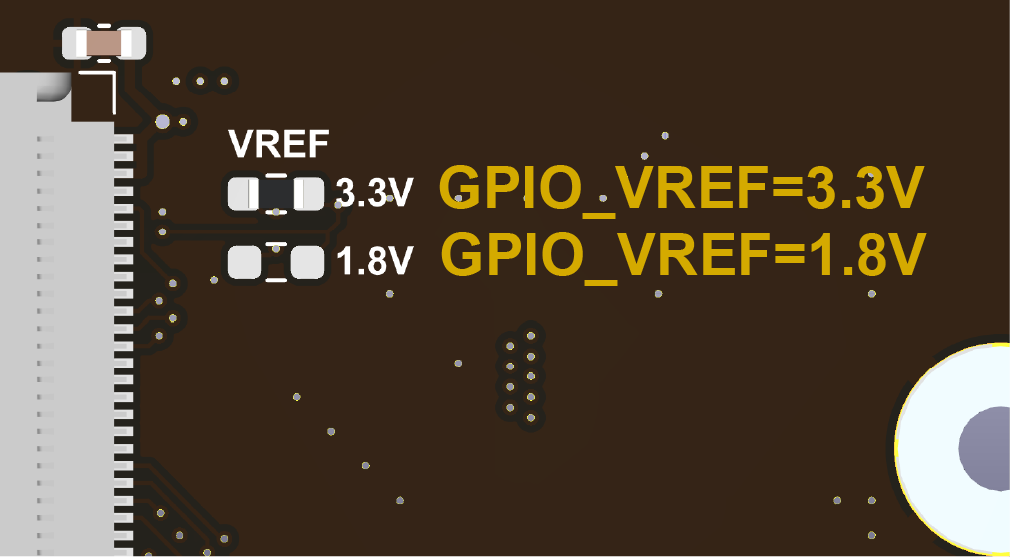
- Sélection de la tension de sortie GPIO, 3,3 V ou 1,8 V. (ne monter qu'une seule résistance)
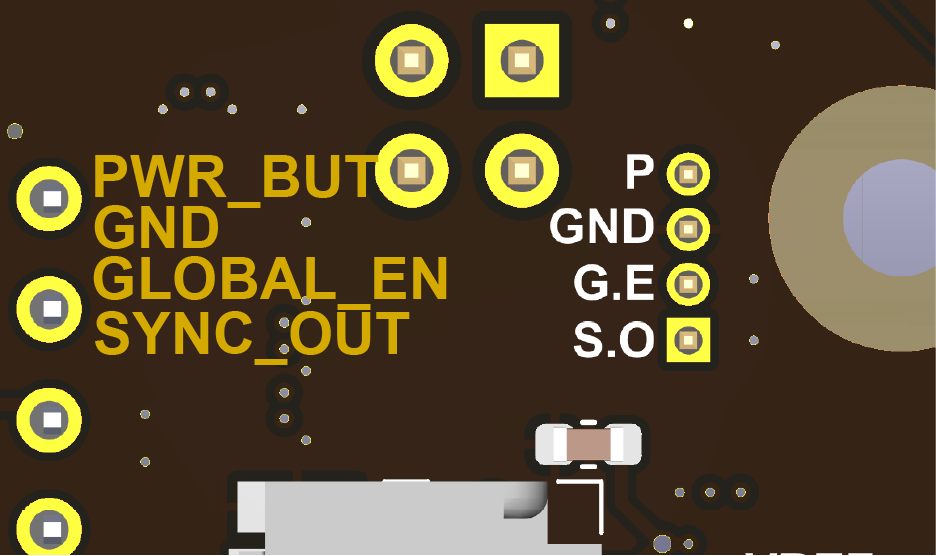
- Bouton d'alimentation
- GND
- Activation globale
- Sortie de synchronisation.
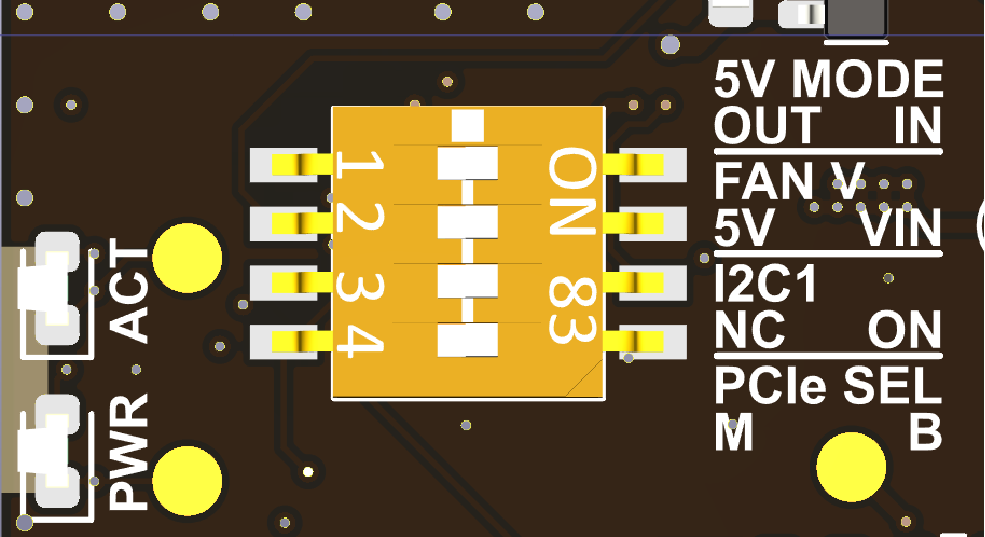
- Sélection du port PCIe (Key B ou M)
- (Activation de l'I2C1 pour la seconde interface CSI/DSI)
- Sélection de la tension du ventilateur (5V ou VIN)
- Configuration des entrées/sorties 5V sur le connecteur 40 broches
Avertissement
- Toute alimentation externe utilisée avec la carte TOFU5+ doit être conforme aux réglementations et normes en vigueur dans le pays d'utilisation.
- Ce produit doit être utilisé dans un environnement bien ventilé. S'il est installé dans un boîtier, celui-ci ne doit pas être recouvert et doit permettre une dissipation thermique adéquate.
- Pendant son utilisation, ce produit doit être placé sur une surface stable, plane et non conductrice, et ne doit pas entrer en contact avec des objets conducteurs.
- Le raccordement d'appareils incompatibles à la carte TOFU5+ peut affecter la conformité, endommager l'unité et annuler la garantie.
- Tous les périphériques utilisés avec ce produit doivent être conformes aux normes en vigueur dans le pays d'utilisation et porter les marquages appropriés afin de garantir le respect des exigences de sécurité et de performance. Ces articles incluent, sans s'y limiter, les claviers, les moniteurs et les souris utilisés avec la carte TOFU5+.
- Les câbles et connecteurs de tous les périphériques utilisés avec ce produit doivent disposer d'une isolation adéquate afin de satisfaire aux exigences de sécurité applicables.
Consignes de sécurité
Afin d'éviter tout dysfonctionnement ou dommage sur ce produit, veuillez respecter les points suivants :
- Ne pas exposer à l'eau ou à l'humidité, et ne pas placer sur une surface conductrice pendant le fonctionnement.
- Ne pas exposer à une chaleur excessive, quelle qu'en soit la source.
- Manipuler avec précaution pour éviter tout dommage mécanique ou électrique sur le circuit imprimé et les connecteurs.
- Lorsque la carte est sous tension, évitez de la manipuler ou saisissez-la uniquement par les bords afin de réduire le risque de dommages causés par les décharges électrostatiques.
Ressources
- Fiche technique du Raspberry Pi Compute Module 5
- Fiche technique de la carte d'E/S du Raspberry Pi Compute Module 5
- Documentation générale Raspberry Pi
Personnalisation
Oratek est une société d'ingénierie ancrée dans le réel ; par conséquent, toute personnalisation ou tout développement basé sur le TOFU n'est pas seulement une possibilité, mais une réalité. Au cours des dernières années, nous avons réalisé de nombreux développements sur mesure et nous serons heureux d'étudier toute demande.
Pour toute demande, veuillez nous contacter
Déclarations de conformité
- Déclaration de conformité RoHS
- Déclaration de conformité CE
- Déclaration de conformité FCC
- Déclaration de conformité UKCA
Raspberry Pi est une marque déposée de la Raspberry Pi Foundation